
Component Rules
Overview
Component Rules is a batch tool for running, managing, and auditing iLogic rules across many components in an assembly. Use it when you need to run a standard set of rules, suppress or unsuppress rules across a project, rename or delete a rule everywhere, or quickly audit which components do (or do not) contain specific rules.
How It Works
Component Rules processes a set of target components and applies the selected command to each requested rule name. Rules can be entered as a comma‑separated list, or you can choose to process all rules found in each component.
For management commands (Run, Delete, Rename, Suppress, Unsuppress), the tool attempts the requested change in each component and records results. Run can optionally include suppressed rules.
For reporting commands, the tool checks each component for the requested rule(s) and records presence and absence. Components that match the report condition are added to the selection set, making it easy to review results directly in the assembly.
Context Menus
The following inputs provide a right‑click context menu and a small button beside the input. Both open the same selection dialog.
- Rules: Opens a list of rule names. You may be prompted to pick a component first. The dialog then lists the rules available in that component. Select one or multiple rules and click OK to insert them as a comma‑separated list.
- New Name (Rename Rule): Opens a list of rule names from a picked component to help avoid typing mistakes. Select one item and click OK to insert it into the field.
When the list depends on a specific component, you will be prompted to pick a component first so the list can be populated with that component’s rule names.
Usage Instructions
- Open an assembly.
- Start Component Rules.
- Select the Command you want to run.
- Either enable All Rules or enter one or more rule names as a comma‑separated list.
- If running rules, choose whether to run suppressed rules.
- Choose how to select target components and configure any filtering options. Use Preview to highlight targets.
- Click Apply to run and review the results.
Troubleshooting
- Apply is disabled: Enter at least one rule name (unless All Rules is enabled). If Selection Set is selected, ensure the selection set contains components.
- Rename is blocked: Rename accepts only one rule name (not a comma‑separated list) and requires a non-empty New Name.
- Rules do not run: If a rule is suppressed and Run suppressed is off, it will not execute.
- Report results are unexpected: Verify your rule name spelling (use the picker) and check whether All Rules is enabled.
Examples
Example: Run a rule on many components
Enter the rule name (or a comma‑separated list), select Run Rule, and process all components filtered by type and nesting.
Example: Suppress a rule across an assembly
Enter the rule name(s), select Suppress Rule, and run on the desired component set.
Example: Audit rule presence
Use Rule Presence Report or Rule Absence Report to automatically build a selection set of matching components for follow‑up.
Dialog Box Input
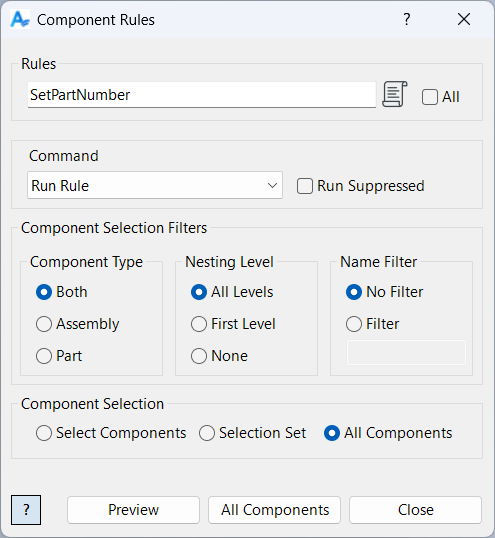
Rule Selection
Enter rule names as a comma-separated list, or enable All Rules to process all rules found in each component.
Command
Run Rule: Executes the rule(s) in the selected components.
Delete Rule: Removes the rule(s) from the selected components.
Rename Rule: Renames a rule in the selected components.
Suppress Rule: Disables the rule(s) in the selected components.
Unsuppress Rule: Re-enables suppressed rule(s) in the selected components.
Rule Presence Report / Rule Absence Report / Rule Audit Report: Audits whether the rule(s) exist in each component and builds a selection set of matching components.
Component Selection
Select components to process. Filtering options are available as described in Filtered Select.
Samples
See Sample Component Rules for an example, and Samples Summary for where sample files are installed.
